Portal Report
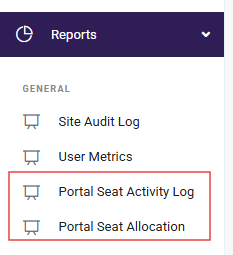
We have added two Portal-Related reports to the Reports menu:
- Portal Seat Activity Log
- Portal Seat Allocation
- Export Portals

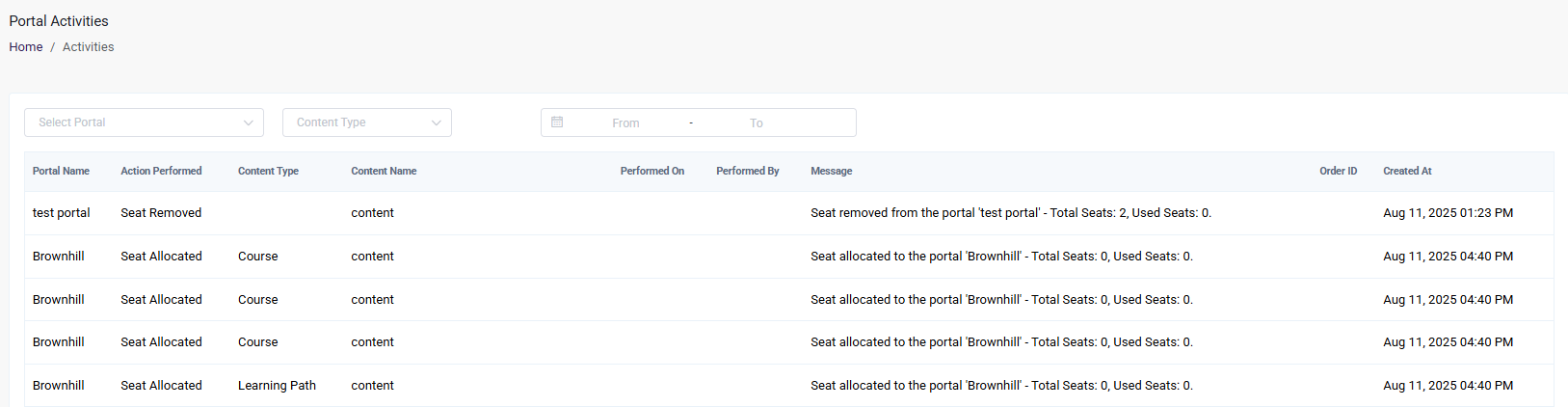
Portal Seat Activity Log
To access this report, go to the Reports menu and select Portal Seat Activity Log.
This report provides a detailed overview of all seat usage activities within the portal.
For Portal-Based Seats:
- Displays the total number of seats allocated to the portal.
- Shows how many of those seats are currently in use.
For Content-Based Seats:
- Lists each content item (such as courses, learning paths, or memberships) within the portal.
- For each item, displays the total seats allocated and the number of seats currently used.
This report helps to track seat utilization in real time. The report can also be filtered by portal, content type, and date using the filter options.
Portal Seat Allocation
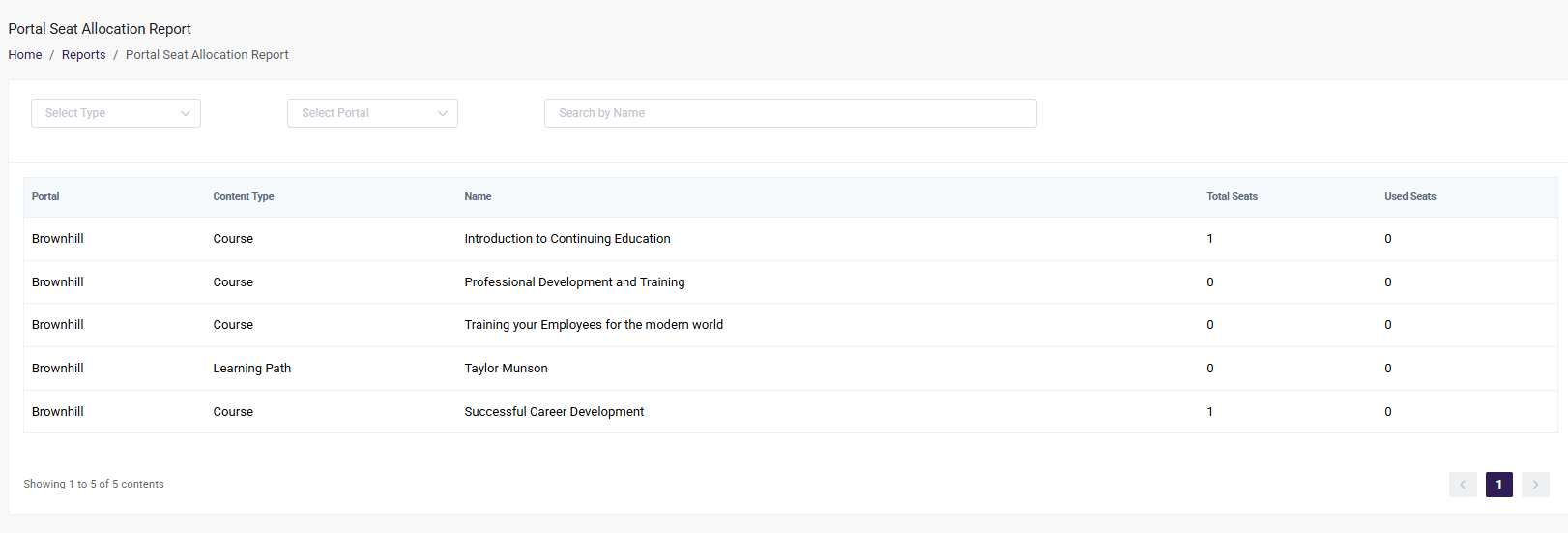
To access this report, navigate to the Reports menu and select Portal Seat Allocation.
This report provides an overview of seat allocation and usage for all content items within the portal. For each piece of content (such as a course, learning path, or membership), it displays:
- Total seats allocated
- Seats currently in use
Filters can also be applied to refine the report by:
- Portal
- Content type (e.g., course, learning path, membership)
This helps to quickly identify seat distribution and usage across different types of content.
Export Portals
The Export Portal feature allows you to export the portals and its users information from the All Portals Listing page into an Excel (.xlsx) file.
The exported Excel file contains Two worksheets:
- Portals – Contains information about each portal.
- Portal Users – Contains information about users associated with each portal.
This is useful when you need to review, share, or maintain a record of portal information outside the platform.
Accessing Export Portal
To export the portal listing:
- Navigate to the All Portals page.
- Click Export Portal.
- The system will generate an Excel (
.xlsx) file containing the portal information. - Once the export is complete, the file will be downloaded to your device.
Exported Excel Worksheets
The downloaded Excel file contains two sheets: one with portal information and the other with portal user information.
Portals Worksheet
The Portals worksheet contains information about each portal, including:
- ID – The unique ID of the portal.
- Name – The name of the portal.
- Parent – The parent portal associated with the portal, if applicable.
- Admin – The number of portal admins associated with the portal.
- Learner – The number of learners associated with the portal.
- Seat Access – Indicates the type of seat access available to the portal.
- Used Seats – The number of seats currently being used.
- Total Seats – The total number of seats available for the portal.
- Status – The current status of the portal.
- Expiry Date – The expiry date configured for the portal, if applicable.
- Created At – The date and time when the portal was created.

Each portal is listed with its key details, making it easier to review and identify portal information such as adminis, learners, seat usage, status, expiry date, and creation date.
Portal Users Worksheet
The Portal Users worksheet contains information about users associated with the portals, including:
- Portal ID – The unique ID of the portal associated with the user.
- Portal Name – The name of the portal associated with the user.
- First Name – The user's first name.
- Last Name – The user's last name.
- Email – The user's email address.
- Is Admin – Indicates whether the user is a portal admin.
- Is Learner – Indicates whether the user is a portal learner.

Each user is listed along with the portal they are associated with, making it easier to identify the users belonging to each portal.