Course Bridge : Build Once , Share Widely, Maintain Control
Introduction
Course Bridge lets you share a course from Academy of Mine with almost any other learning system that supports standard course packages (SCORM 1.2 or SCORM 2004).
In simple terms, you keep the real course inside Academy of Mine. You then download a small package and upload that package into another learning system (for example, a client’s LMS, a partner platform, or a company training portal). When a learner opens that package in the other system, they are taken into your course in Academy of Mine. Their progress and completion are sent back to the other system.
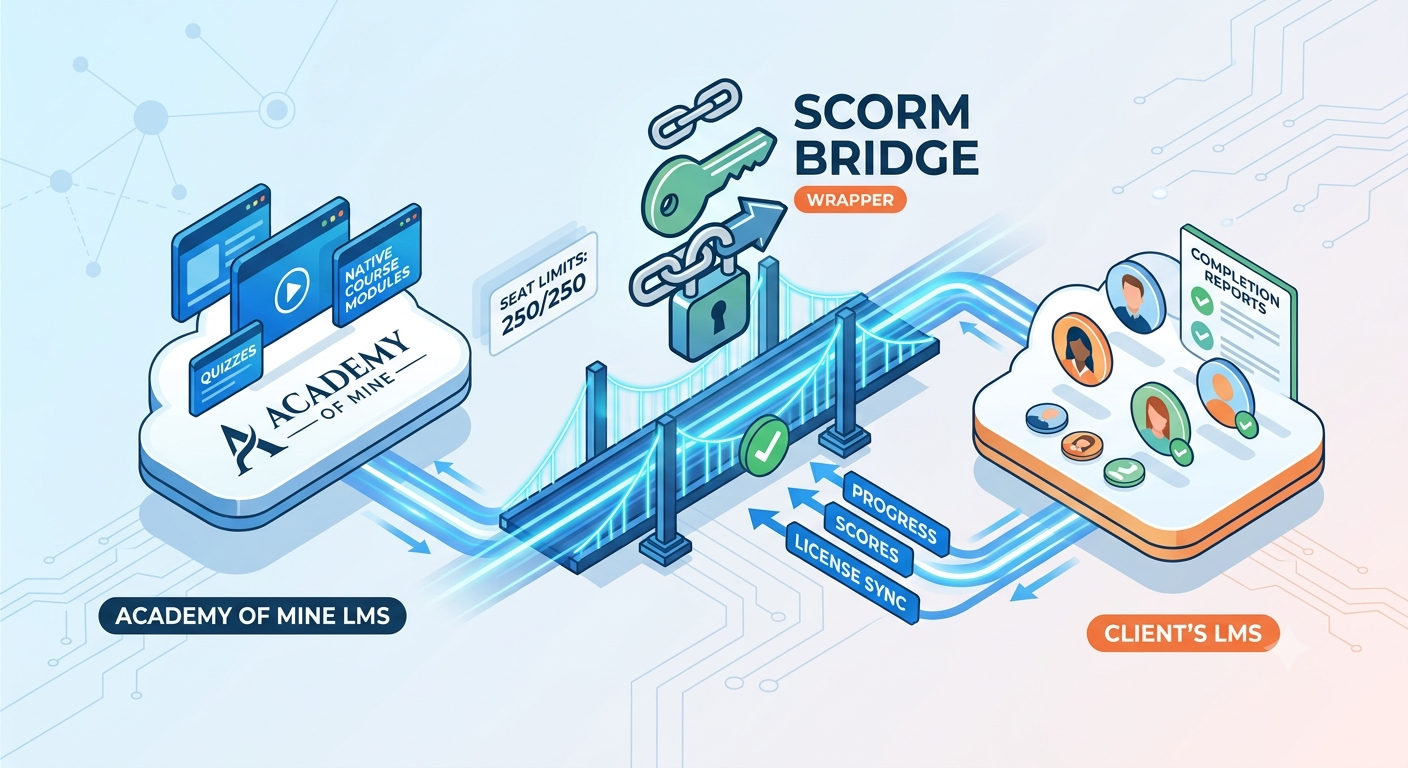
This is useful when:
- You create courses in Academy of Mine, but your customers use their own learning systems.
- You want to sell or distribute the same course to many organizations without rebuilding it for each platform.
- You want learners to take the course from another system, while you still own and update the content in one place.
What problems does Course Bridge solve?
Training teams often face these challenges:
- Content is locked inside one system
A course built in one LMS cannot easily run in another. Teams end up copying files, rebuilding lessons, or maintaining multiple versions. - Updates become hard
If the same course is copied into many systems, every update must be repeated everywhere. That is slow and error-prone. - Authors lose control
Once course files are handed over, authors may no longer control what learners see. Old versions stay online even after content has changed. - Tracking is split
Progress may live in the external system, while the real learning experience lives somewhere else. Teams struggle to keep both sides in sync.
Course Bridge solves these by acting as a bridge between Academy of Mine and the external learning system.
How does it help course authors and organizations?
- Create once, share widely
Build the course in Academy of Mine, then share it with any SCORM-compatible learning system. - Keep control of the content
The full course stays in Academy of Mine. The downloaded package is only a launcher. If you update lessons, quizzes, videos, or resources in Academy of Mine, learners launching from the external system get the updated experience. - Support partner and client distribution
Give partners or clients a package they can upload into their own LMS, without giving away editable course source files. - Report progress back
As learners move through the course, completion and (when grading is turned on) scores can be reported back to the host learning system. - Choose how learners are identified
You can ask for name and email, or allow simpler anonymous-style access when that fits your use case.
How content stays controlled by the course author
Even after the package is uploaded into many external systems, the true course still lives in Academy of Mine.
That means:
- Authors can update modules, media, quizzes, and learning resources in one place.
- Authors can turn a bridge on or off.
- Authors can stop new enrollments while still allowing existing learners to continue.
- Authors can set an expiry date for the bridge.
- Authors do not need to re-upload a full course package every time they change content.
The external system only hosts the small bridge package. Academy of Mine remains the source of truth for the learning experience.
Getting started
Where to find Course Bridge
- Sign in to Academy of Mine as an admin.
- Go to Dashboard.
- Open Courses->Course Bridge.
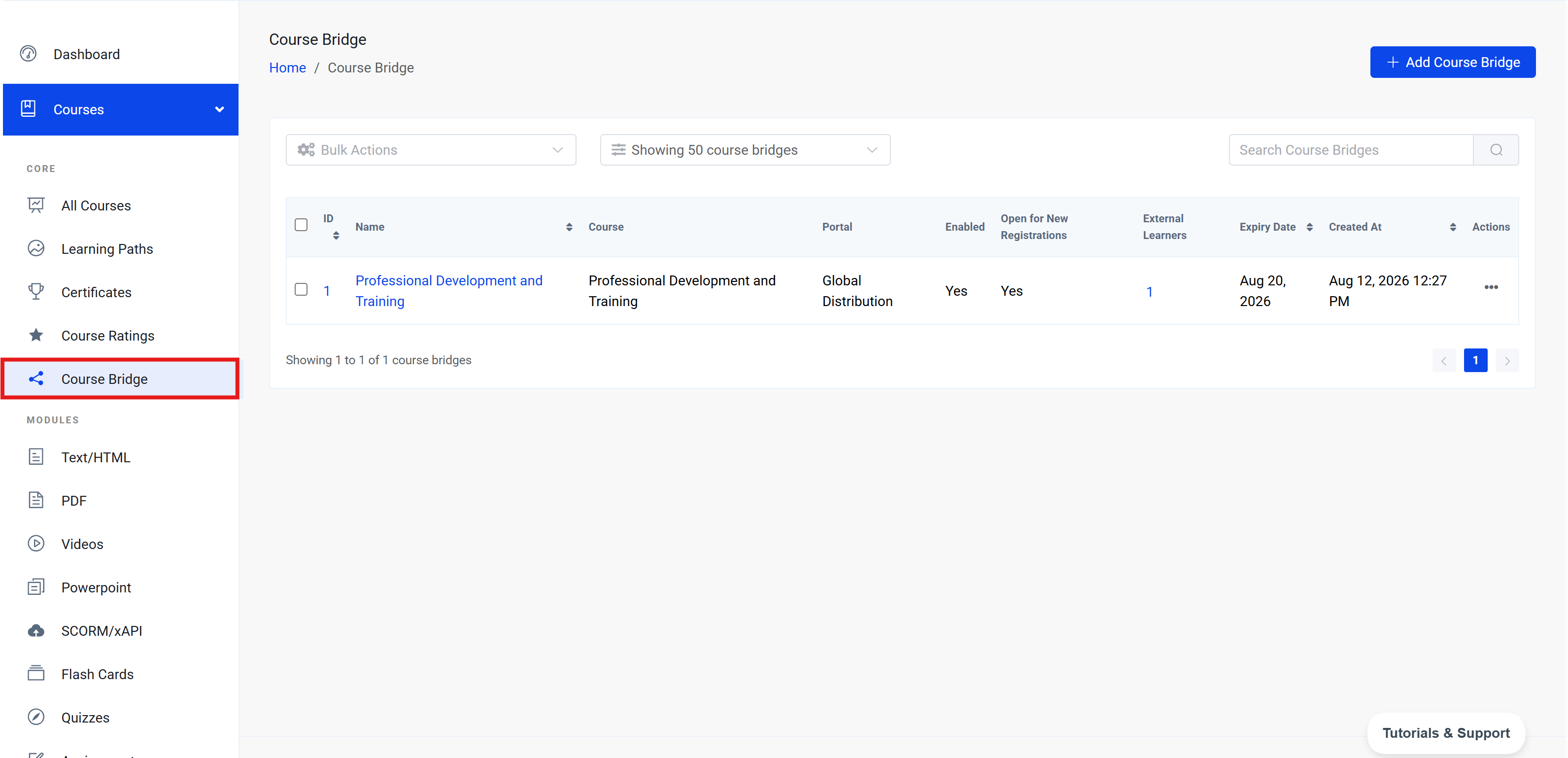
From the listing page you can:
- Search existing bridges
- Create a new bridge
- Edit a bridge
- Download a SCORM package
- Delete one or more bridges
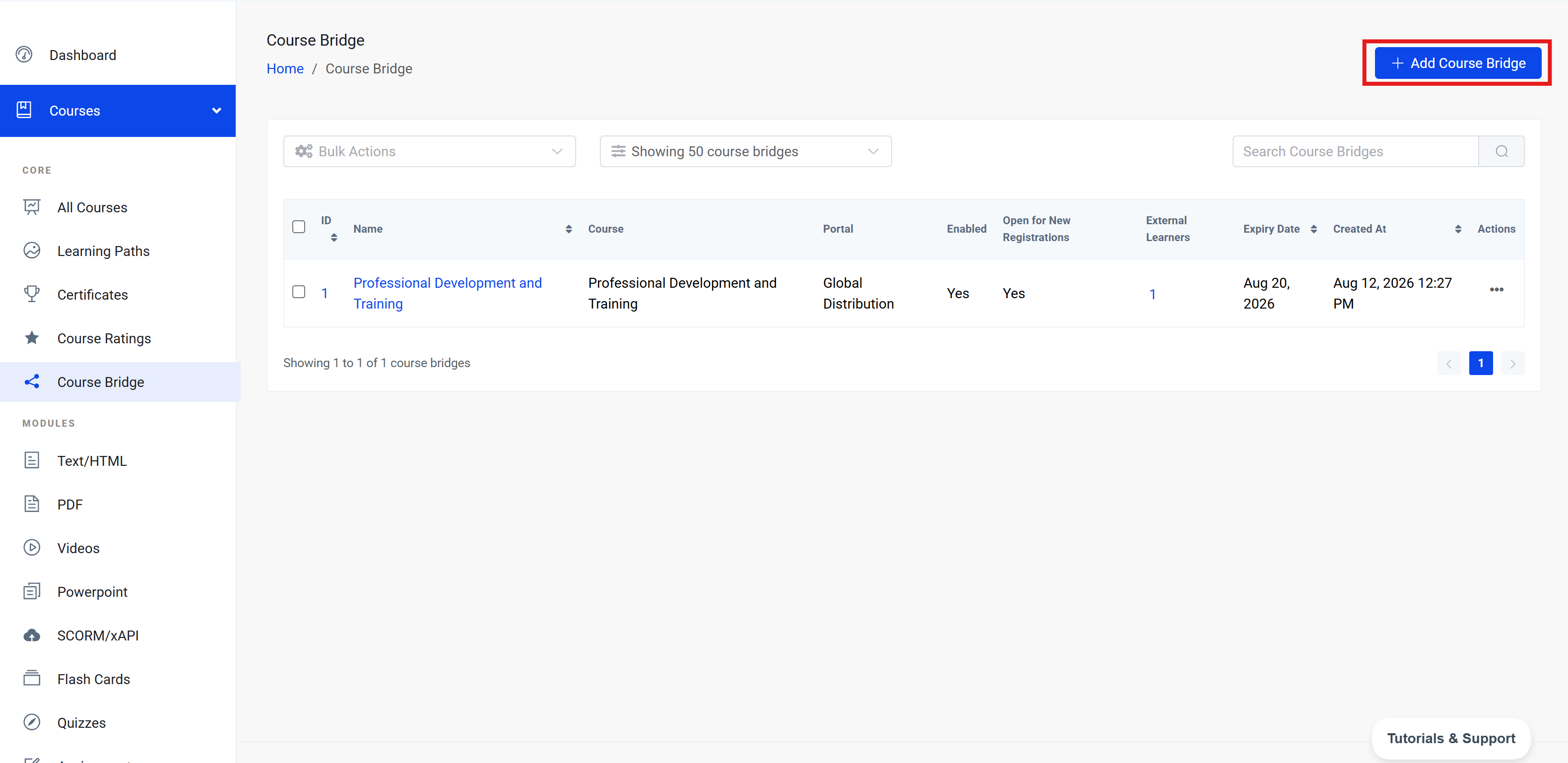
How to create a Course Bridge
- Go to Dashboard → Course Bridge.
- Click Add Course Bridge.
- Fill in the settings described below.
- Click Save Course Bridge.
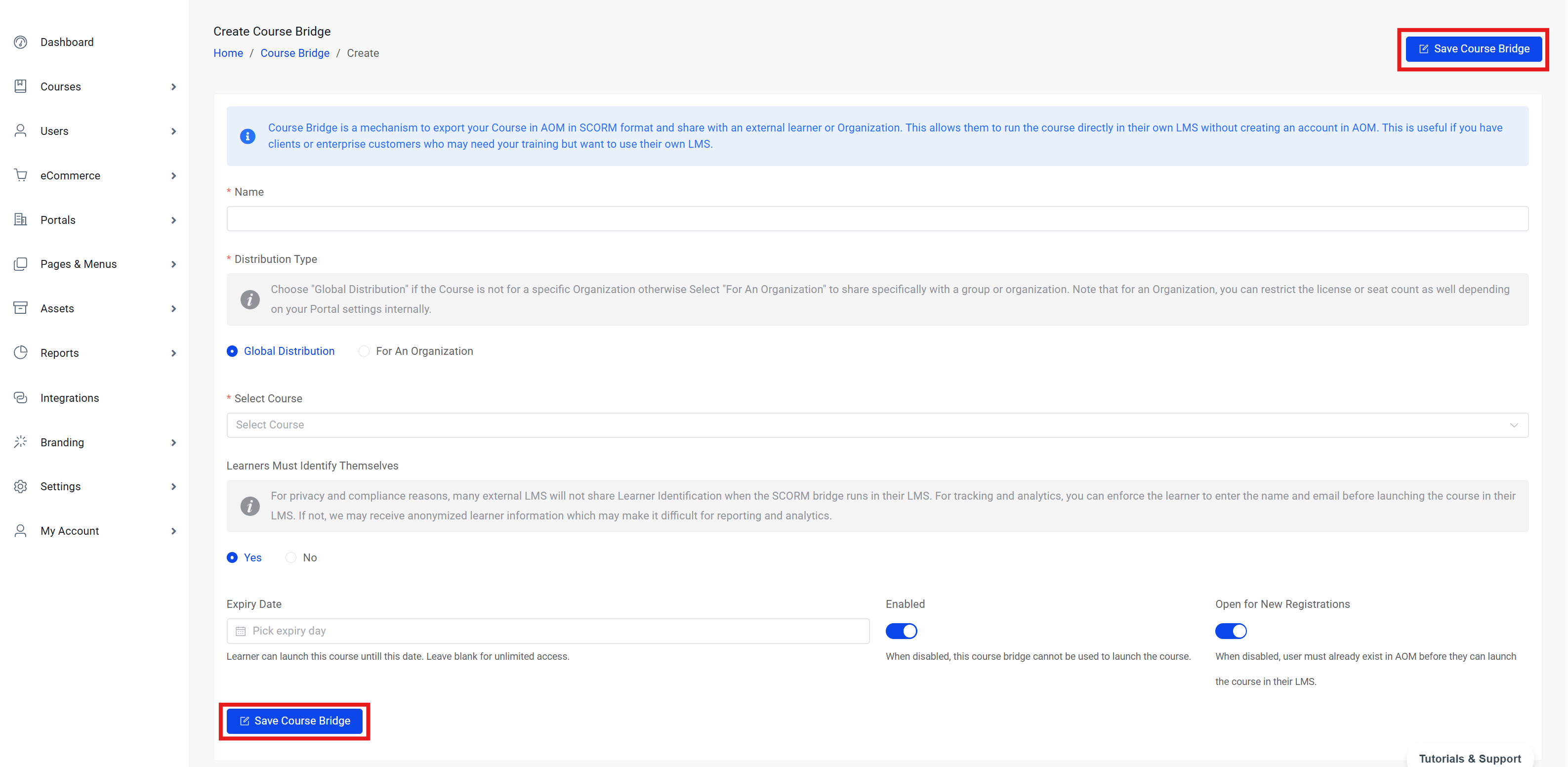
After saving, you are taken to the edit page for that bridge. From there you can download the package for SCORM 1.2 or SCORM 2004.
Settings explained
Name
A label for this bridge so your team can find it later.
Examples:
- “Safety Course – Client A”
- “Onboarding – Global Share”
- “Leadership Program – Partner Portal”
This name is for your admin team. Choose something clear and easy to recognize.
Distribution Type
This controls who the bridge is meant for.
Global Distribution
Use this when you want to share the course widely, without tying it to one specific portal or organization seat setup.
Best for:
- Broad distribution
- Public or partner sharing where portal-level control is not needed
With Global Distribution, you simply choose the course.
For Organization
Use this when the bridge should work through a specific portal or organization.
Best for:
- Client-specific delivery
- Portal-based access
- Cases where only learners belonging to that portal should use the bridge
With For Organization:
- First choose the Portal.
- Then choose a Course available in that portal.
Helpful tip:
Choose Global for unlimited-style sharing. Choose For Organization when you need portal-based control and clearer ownership for one organization.
Select Portal
Shown only when Distribution Type is For Organization.
Choose the portal that should own or manage this shared course experience. Learners using this bridge should belong to that portal, and the course must be available in that portal.
Select Course
Choose the Academy of Mine course that learners should take when they open the package in the external learning system.
Important:
- One bridge points to one course.
- If you need to share several courses, create one bridge for each course.
- For organization bridges, only courses available in the selected portal are listed.
Ask Learner Identification
This controls whether learners are asked for their details before the course opens.
Yes
Learners are asked for their name and email before launch.
Use this when:
- You want clear learner records
- You need reliable progress tracking per person
- You want to match learners to real accounts in Academy of Mine
If the external system already knows the learner’s name or email, those values may be prefilled when available.
No
Learners are not asked to enter name and email.
Use this when:
- You want a faster launch with fewer steps
- Exact personal identification is not required for your use case
In this mode, learners are tracked using auto-generated placeholder emails. This is simpler for access, but less useful when you need accurate personal learner records.
Expiry Date
Optional end date for the bridge.
- Leave empty if the bridge should not expire by date.
- Set a date if access should stop after that day.
After the expiry date, learners can no longer use this bridge to open the course. They will see a message that the course bridge has expired.
Enabled
Turns the whole bridge on or off.
| Setting | What happens |
|---|---|
| On | Learners can use the bridge (if it has not expired and other rules allow it). |
| Off | No one can launch the course through this bridge. |
Use this when you want to temporarily pause access for everyone without deleting the bridge.
Open for New Registrations
Controls whether new learners can be enrolled through this bridge.
| Setting | What happens |
|---|---|
| On | New learners can register and start the course through the bridge. |
| Off | New learners cannot start. Learners who are already enrolled can still continue. |
This is useful when a program is full, a contract ends for new seats, or you want to stop fresh enrollments but not interrupt current learners.
How the settings work together
Think of the settings in this order:
-
Enabled must be on.
-
Expiry Date must be empty or still in the future.
-
If the learner is new:
- Open for New Registrations must be on.
-
If the learner is already enrolled:
- They can continue even if new registrations are closed.
Common setup examples
| Goal | Suggested settings |
|---|---|
| Fully open and ready to share | Enabled = On, Open for New Registrations = On, Expiry Date = empty |
| Stop new people, keep current learners going | Enabled = On, Open for New Registrations = Off |
| Pause everything temporarily | Enabled = Off |
| End access on a fixed date | Set Expiry Date |
How to edit a Course Bridge
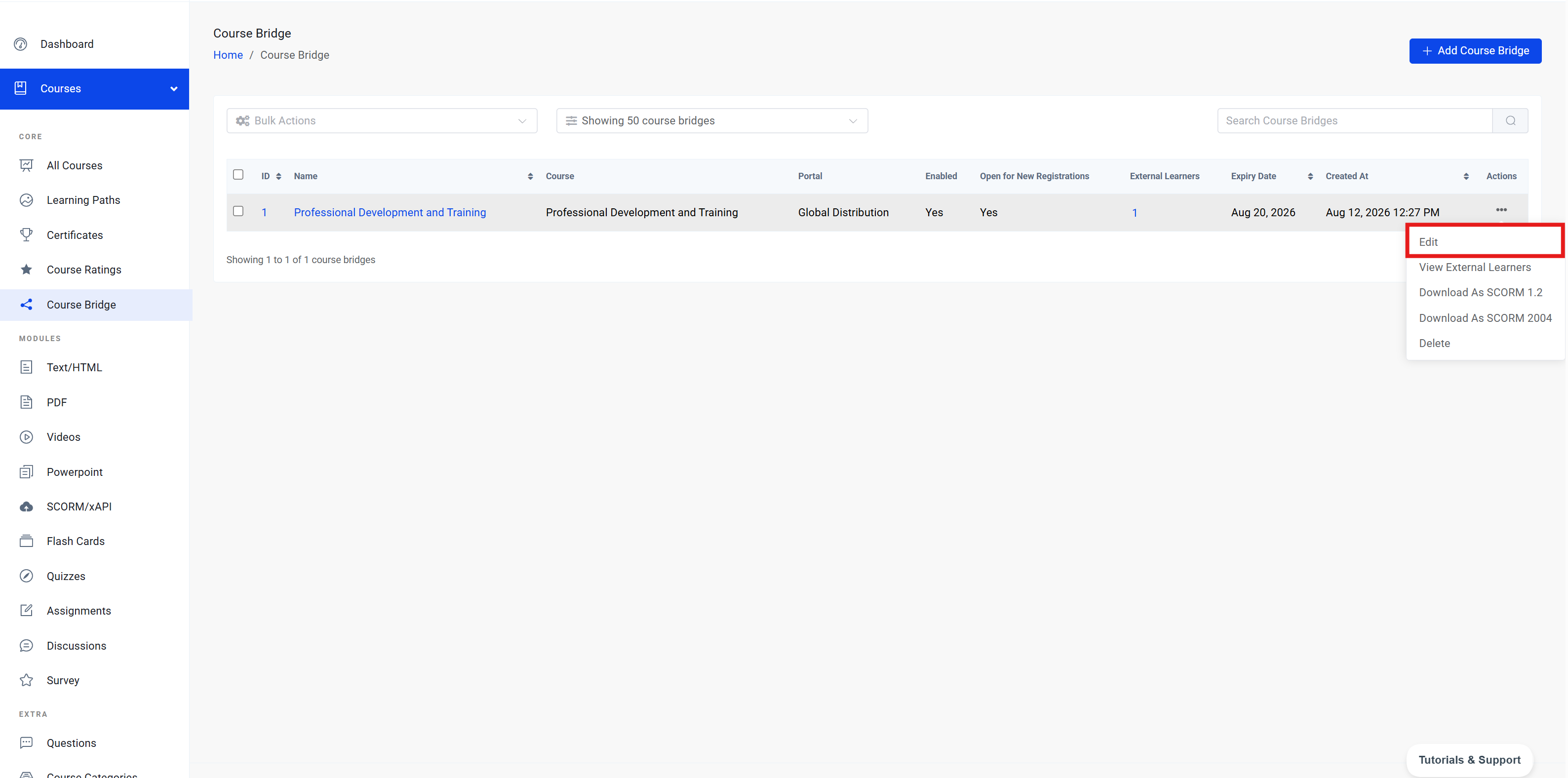
- Go to Dashboard → Course Bridge.
- Find the bridge in the list.
- Click the bridge name, or open Actions → Edit.
- Update the settings.
- Click Update Course Bridge.
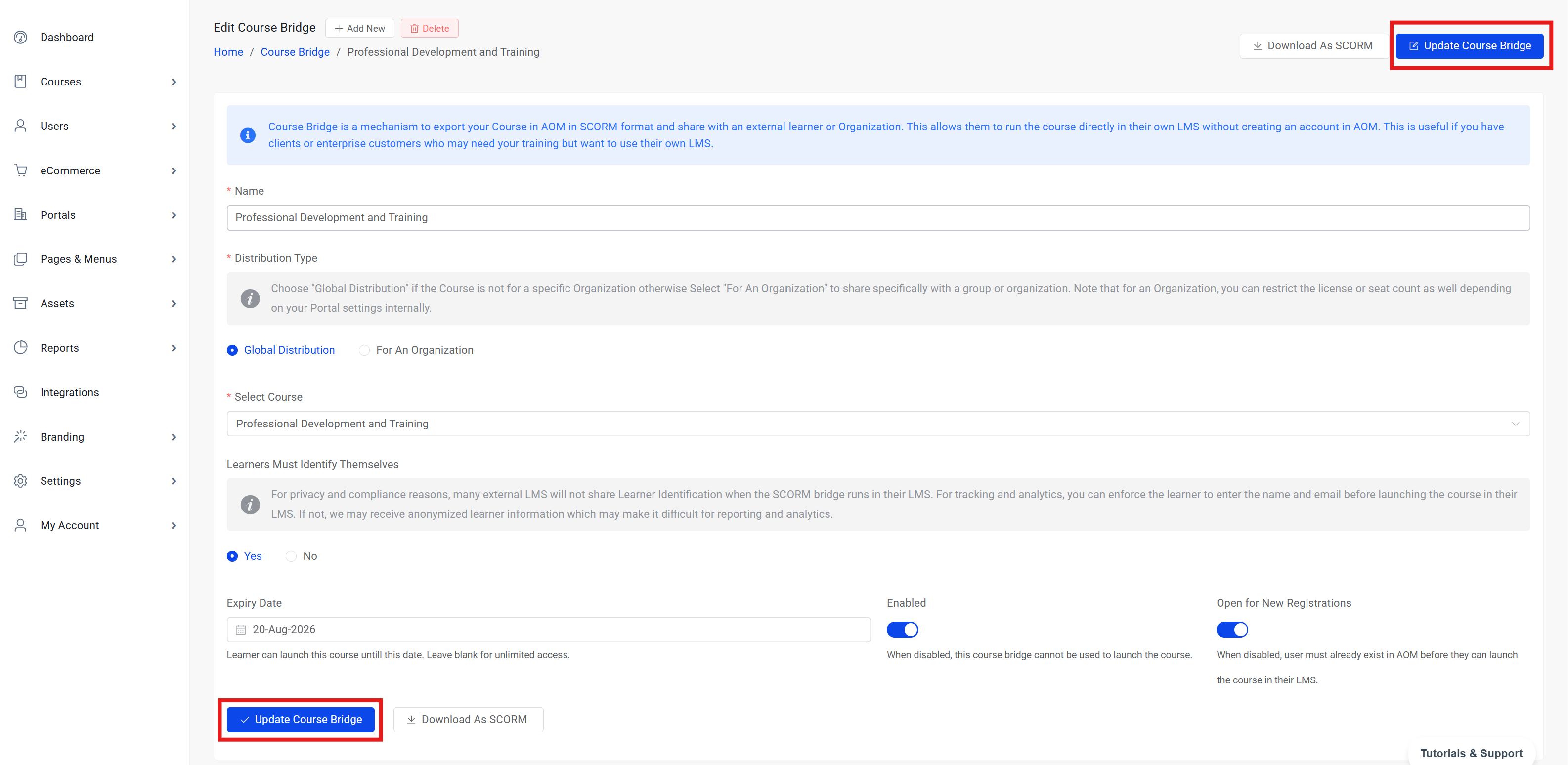
You can change:
- Name
- Distribution type
- Portal (for organization bridges)
- Course
- Learner identification
- Expiry date
- Enabled
- Open for new registrations
After you save changes, the updated rules apply the next time a learner tries to launch.
From the edit page you can also:
- Download SCORM 1.2
- Download SCORM 2004
- Delete the bridge
- Create another new bridge
How to download the SCORM package
After a Course Bridge is created, download a package and upload it into the external learning system.
From the edit page
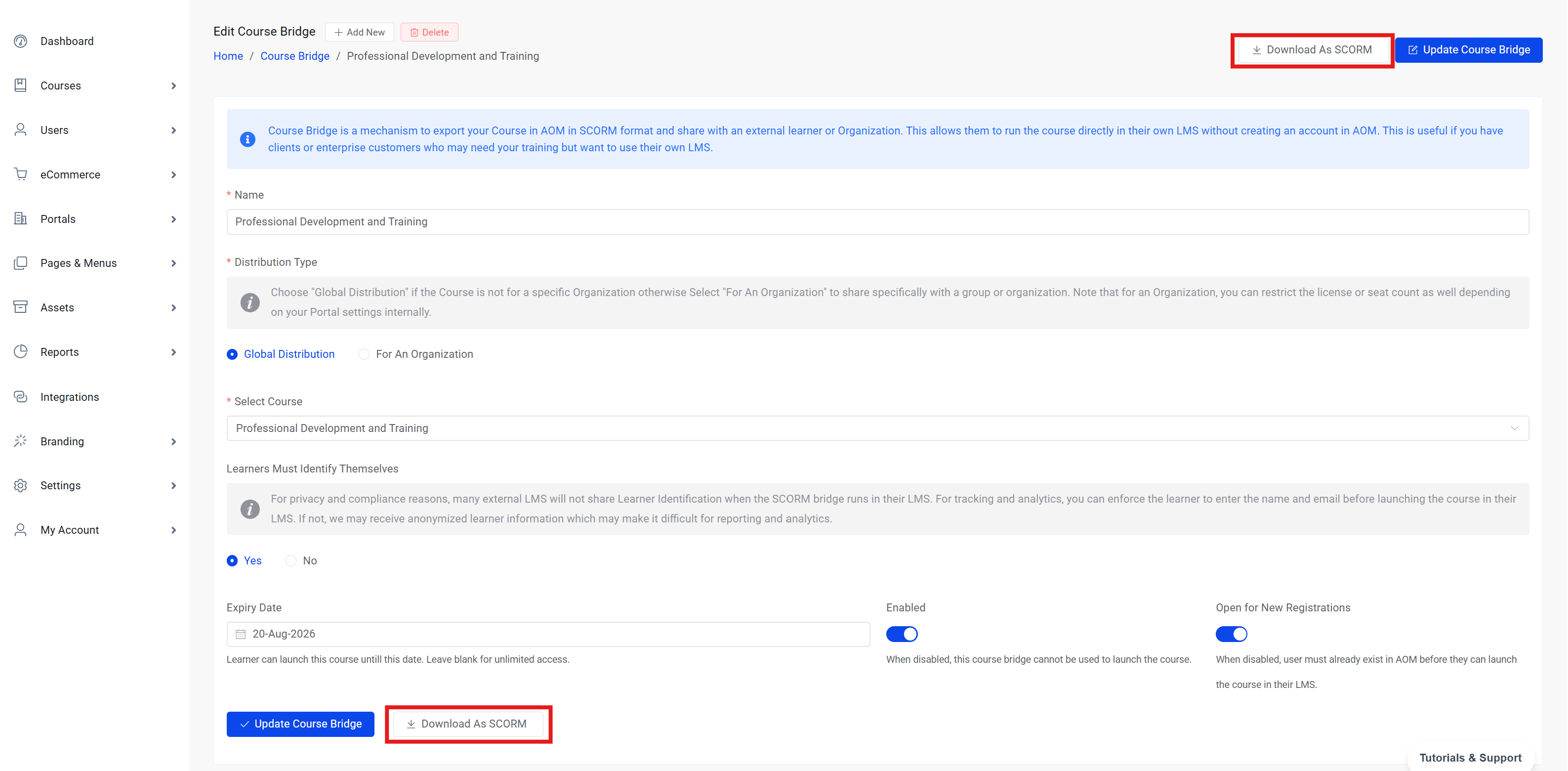
- Open the Course Bridge.
- Click Download SCORM.
-
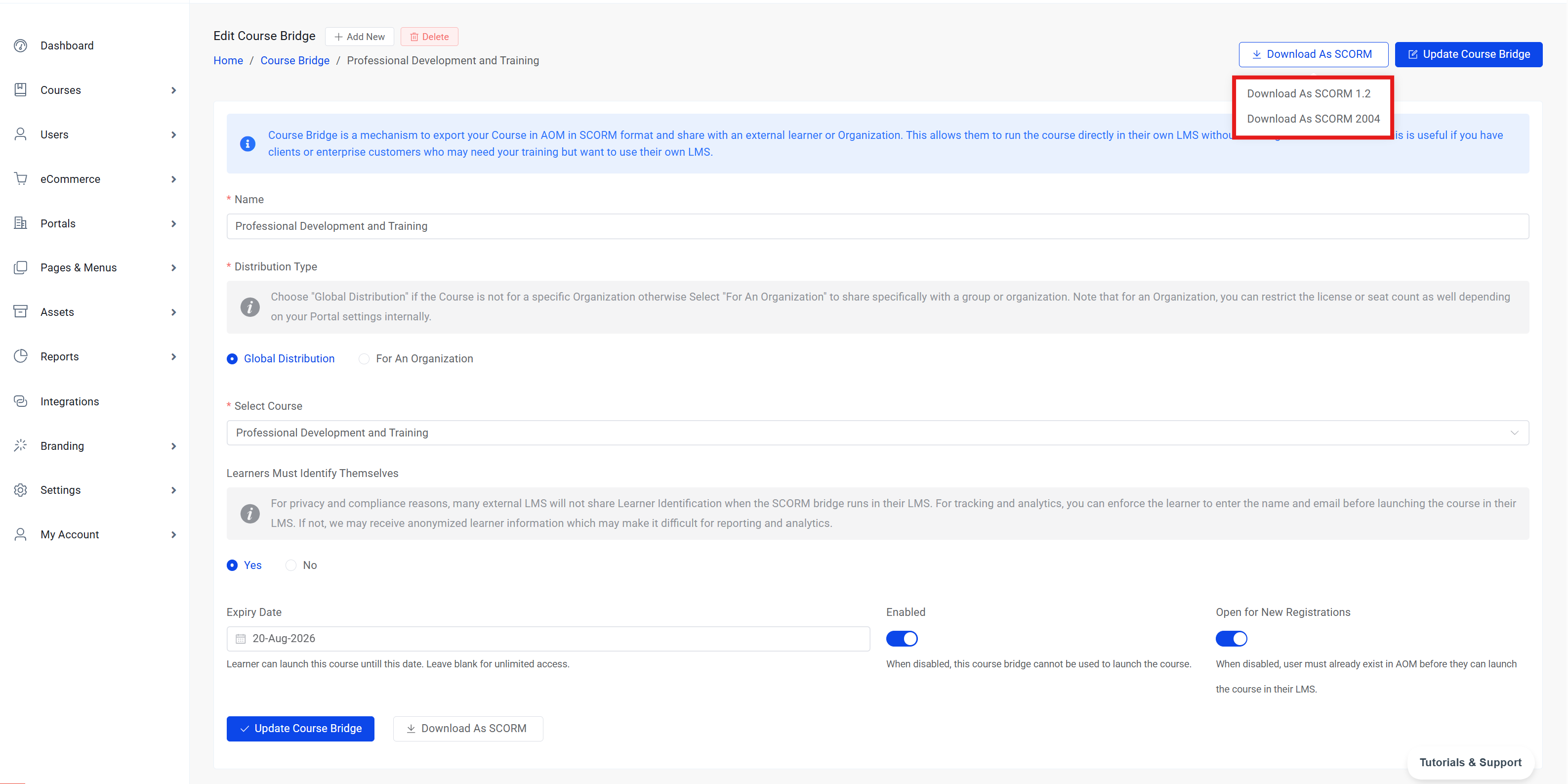
Choose one of:
- Download SCORM 1.2
- Download SCORM 2004
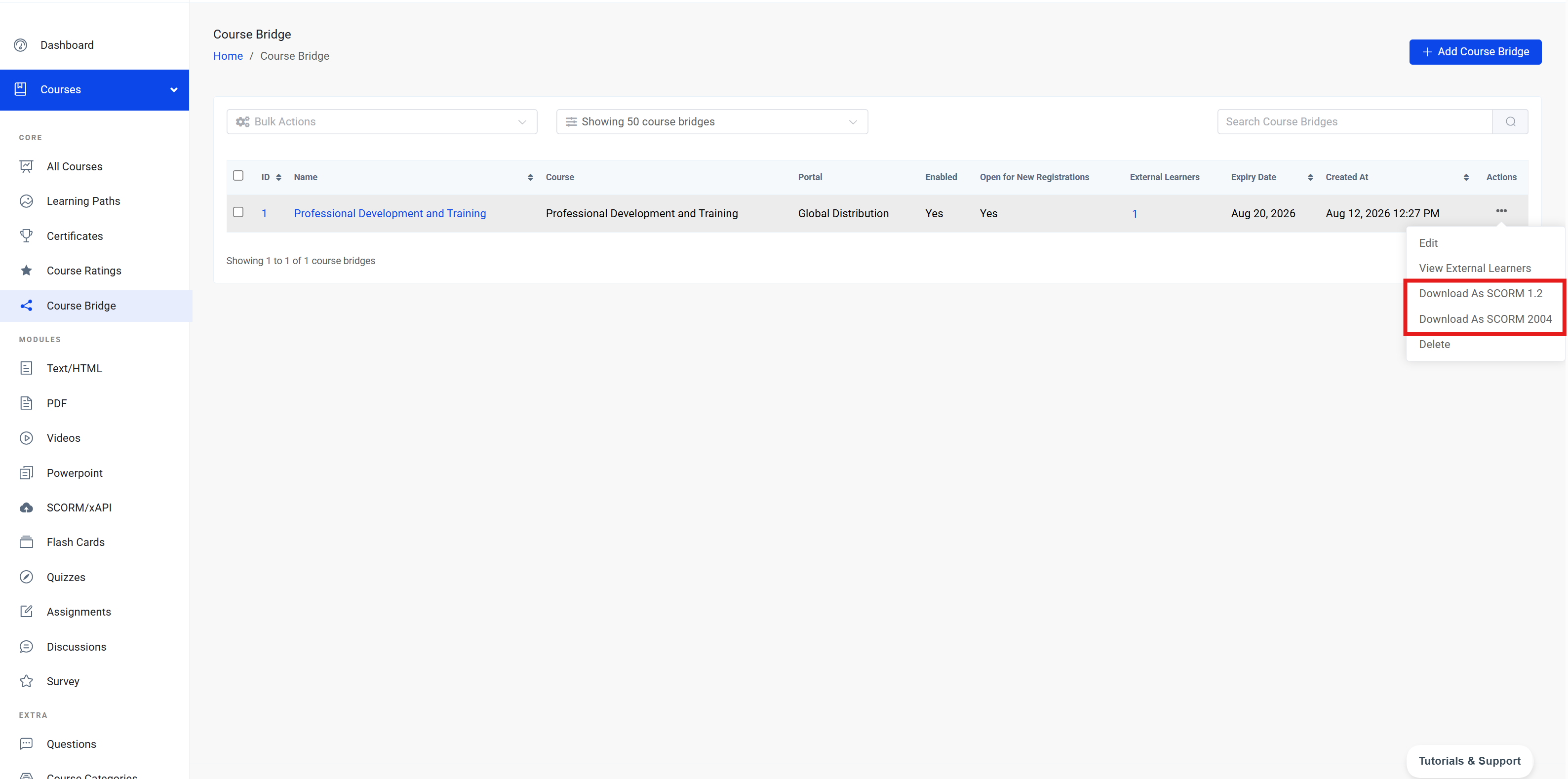
From the listing page
- Go to Course Bridge.
- Open the Actions menu for a bridge.
- Choose Download SCORM 1.2 or Download SCORM 2004.
Which version should you choose?
- Choose SCORM 1.2 if the external learning system asks for 1.2, or if that is the only format it supports.
- Choose SCORM 2004 if the external learning system supports 2004.
If you are unsure, ask the other system’s admin which SCORM version they accept. Many older systems use 1.2. Newer systems often support 2004.
What do you do with the downloaded file?
- Download the ZIP package from Academy of Mine.
- Go to the external learning system.
- Upload the ZIP as a SCORM course or learning object.
- Assign it to learners in that system as usual.
When a learner launches it there, the package connects to Academy of Mine and opens the linked course.
What learners experience
A typical learner journey looks like this:
- The learner opens the course inside the external learning system.
- If learner identification is turned on, they confirm or enter name and email.
- The course opens from Academy of Mine.
- The learner completes modules, webinars, quizzes, and resources as designed.
- Progress is sent back to the external learning system.
What gets reported back:
- Completion status
- Progress through the course
- Score, when the Academy of Mine course has grading turned on
If grading is off in the course settings, completion and progress are still reported, but a numeric score is not sent.
Keeping control after distribution
Once packages are shared, you can still manage access from Academy of Mine:
- Update the course content at any time.
- Turn the bridge off if you need to stop all launches.
- Close new registrations while allowing existing learners to finish.
- Set or change an expiry date.
- Delete a bridge if it should no longer be used.
This is one of the biggest benefits of Course Bridge: you can distribute widely without giving up ownership of the learning experience.
Best practices
- Use clear names
Include the course name and the audience or partner in the bridge name. - Create separate bridges for separate audiences
For example, one bridge for Partner A and another for Partner B makes access easier to manage. - Use For Organization when portal control matters
This helps keep learners and course availability tied to the right portal. - Ask for learner identification when records matter
Choose Yes if you need reliable names, emails, and reporting. - Download the version your partner’s LMS supports
Confirm SCORM 1.2 or SCORM 2004 before sending the package. - Test before wide rollout
Upload the package into a test course in the external system and launch it once as a learner. - Use Open for New Registrations carefully
Turn it off when a program should stop accepting new people but current learners should continue.
Quick summary
Course Bridge helps you:
- Build a course once in Academy of Mine
- Share it with other SCORM-compatible learning systems
- Keep the real content under your control
- Update the learning experience in one place
- Send progress and completion back to the external system
To use it:
- Create a Course Bridge and choose your settings.
- Save it.
- Download SCORM 1.2 or SCORM 2004.
- Upload that package into the external learning system.
- Learners launch from there, while Academy of Mine remains the home of your course.